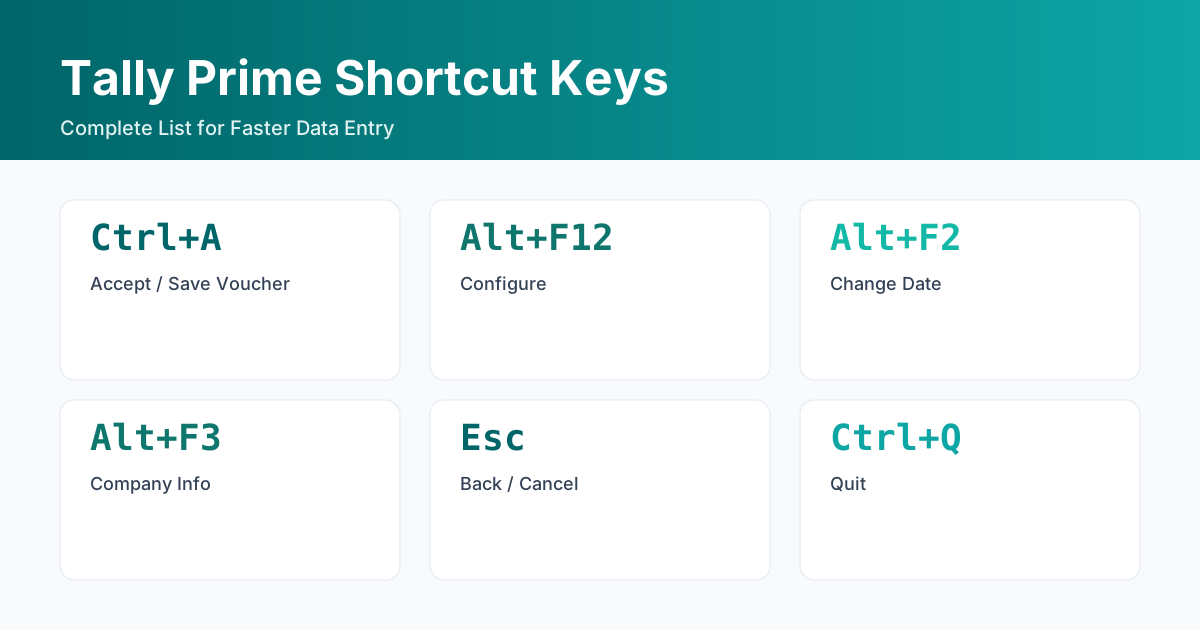
Shortcut keys in TallyPrime are primarily used to simplify the recording of transactions, navigation, and reporting. They help you work faster without relying heavily on the mouse.
Hidden/Essential Keys
| Action | Shortcut Key |
|---|---|
| Go back to previous screen / close current screen | Esc |
| Remove input provided/selected for a field | Backspace |
| Open Company Features screen | F11 |
| Move between fields/menus/lines/columns | Arrow Keys, Tab / Shift+Tab, Up/Down, Left/Right |
| Move to beginning/end of text or list | Home / End / PgUp / PgDn |
| Move to first/last field or line | Ctrl+Home / Ctrl+End |
| Accept or save a screen | Ctrl+A |
| Expand or collapse group in a table | Alt+Enter |
| Rewrite data | Ctrl+Alt+R |
| Quit the application | Alt+F4 |
| View build information / TDL/Add-on details | Ctrl+Alt+B / Ctrl+Alt+T |
| Open or hide calculator panel | Ctrl+N |
| Exit a screen or application | Ctrl+Q |
Navigation in TallyPrime
| Action | Shortcut Key |
|---|---|
| Go To (search & jump to masters/reports/vouchers) | Alt+G |
| Switch To (move between tasks without losing context) | Ctrl+G |
| Open Company menu | Alt+K |
| Switch to another company / Open another company / Shut company | F3 / Alt+F3 / Ctrl+F3 |
| Change date/period for voucher entry or reports | F2 / Alt+F2 |
| Configuration (applicable for current report/view) | F12 |
| Help / Contextual TallyHelp | F1 / Ctrl+F1 |
| Change display language / data entry language | Ctrl+K / Ctrl+W |
| Import / Export / Print / Email menus | Alt+O / Alt+E / Alt+P / Alt+M |
Voucher Shortcuts
| Voucher Type | Shortcut Key |
|---|---|
| Contra Voucher | F4 |
| Payment Voucher | F5 |
| Receipt Voucher | F6 |
| Journal Voucher | F7 |
| Sales Voucher | F8 |
| Purchase Voucher | F9 |
| Credit Note | Alt+F6 |
| Debit Note | Alt+F5 |
| Stock Journal | Alt+F7 |
| Physical Stock | Ctrl+F7 |
| Delivery Note | Alt+F8 |
| Receipt Note | Alt+F9 |
| Sales Order / Purchase Order | Ctrl+F8 / Ctrl+F9 |
| Rejection In / Rejection Out | Ctrl+F6 / Ctrl+F5 |
| Payroll Voucher | Ctrl+F4 |
| List of all vouchers | F10 |
Voucher Operations
| Action | Shortcut Key |
|---|---|
| Create master on-the-fly | Alt+C |
| Open calculator panel (from amount field) | Alt+C |
| Retrieve narration from previous ledger / previous voucher | Alt+R / Ctrl+R |
| Delete voucher/transaction | Alt+D |
| Cancel voucher | Alt+X |
| Remove item/ledger line | Ctrl+D |
| Mark as Optional / Post-Dated | Ctrl+L / Ctrl+T |
| Autofill details | Ctrl+F |
| Change voucher mode | Ctrl+H |
| Open Stock Query for selected stock item | Alt+S |
| Copy/Paste from input field | Ctrl+C / Ctrl+V (or Ctrl+Alt+C / Ctrl+Alt+V) |
Report Shortcuts
| Action | Shortcut Key |
|---|---|
| Detailed/Condensed view | Alt+F1 / Alt+F5 |
| Drill down from a line | Enter |
| Insert/Add voucher in report / Create entry by duplicating | Alt+I / Alt+A / Alt+2 |
| Delete/Cancel voucher from report / Remove entry | Alt+D / Alt+X / Ctrl+R |
| Hide/Show details / Unhide lines | Alt+T / Alt+U / Ctrl+U |
| Expand/Collapse information | Shift+Enter / Alt+Enter |
| Alter master during voucher entry or from drill-down | Ctrl+Enter |
| Select/Deselect lines / Range selection / Select all / Invert selection | Spacebar / Shift+Spacebar / Shift+Up/Down / Ctrl+Spacebar / Ctrl+Shift+Home/End / Ctrl+Alt+I |
| Add/Alter/Delete/Auto-repeat columns | Alt+C / Alt+A / Alt+D / Alt+N |
| Filter / Conditional filter / Exception reports | Alt+F12 / Ctrl+F12 / Ctrl+J |
| Change view / Navigate to Voucher View | Ctrl+H / Ctrl+B |
Import/Export/Print/Email
| Action | Shortcut Key |
|---|---|
| Print / Export / Email current voucher or report | Ctrl+P / Ctrl+E / Ctrl+M |
Tip: In TallyPrime 7.2, use Alt+G (Go To) as your fastest way to discover and jump to any action, report or master from anywhere. Use the searchable table on this page to quickly find the shortcut you need.
Quick Shortcut Reference
| Keys | Action | Notes |
|---|---|---|
| Alt+G | Go To - Search any menu/report/ledger/voucher | - |
| Alt+C | Create master on-the-fly | - |
| Ctrl+A | Accept/Save | - |
| Esc | Cancel/Go back | - |
| Ctrl+Q | Quit Tally Prime | - |
| Alt+F2 | Change Date | - |
| Alt+F3 | Company Info Menu | - |
| F11 | Company Features | - |
| F12 | Configure | - |
| Alt+F12 | Advanced Configuration | - |
| F4 | Contra Voucher | - |
| F5 | Payment Voucher | - |
| F6 | Receipt Voucher | - |
| F7 | Journal Voucher | - |
| F8 | Sales Voucher | - |
| F9 | Purchase Voucher | - |
| Ctrl+F8 | Credit Note Voucher | - |
| Ctrl+F9 | Debit Note Voucher | - |
FAQs
What is the shortcut key to create a ledger in Tally Prime?
In Tally Prime, you can create a ledger on-the-fly using Alt+C from most screens, or go to Gateway of Tally > Create > Ledger. Using Alt+G (Go To) and searching "Create Ledger" is the fastest way in TallyPrime 7.2.
What is the shortcut key to delete a ledger in Tally Prime?
Select the ledger from the list and press Alt+D to delete (where deletion is allowed). Some system/default ledgers cannot be deleted. For exact context, check the screen prompt or refer to the printable cheat sheet below.
What is the shortcut for a Payment voucher in Tally Prime?
Use F5 from the Accounting Vouchers screen to open a Payment Voucher. You can also use Alt+G (Go To) and search "Payment Voucher".
How is navigation different in TallyPrime 7.2 vs Tally ERP 9?
TallyPrime 7.2 uses Alt+G (Go To) to search and jump to any report, master or voucher from anywhere, and Switch To to move between tasks without losing context. This is far faster than menu-hopping in Tally ERP 9.
Where can I find a printable Tally Prime shortcut keys PDF?
Download the Tally Prime Shortcuts Cheat-Sheet PDF below using the form to keep it offline and share with your team.
Tally Prime Shortcuts Cheat-Sheet (Printable PDF)
Concise printable list of essential shortcuts for faster Tally Prime data entry.
Lead capture is minimal and business-focused. Fill details below to download the resource.
Boost Team Productivity
Need multi-user setup or faster workflows for larger teams? Explore Tally Gold/Server for optimal performance.
Learn More