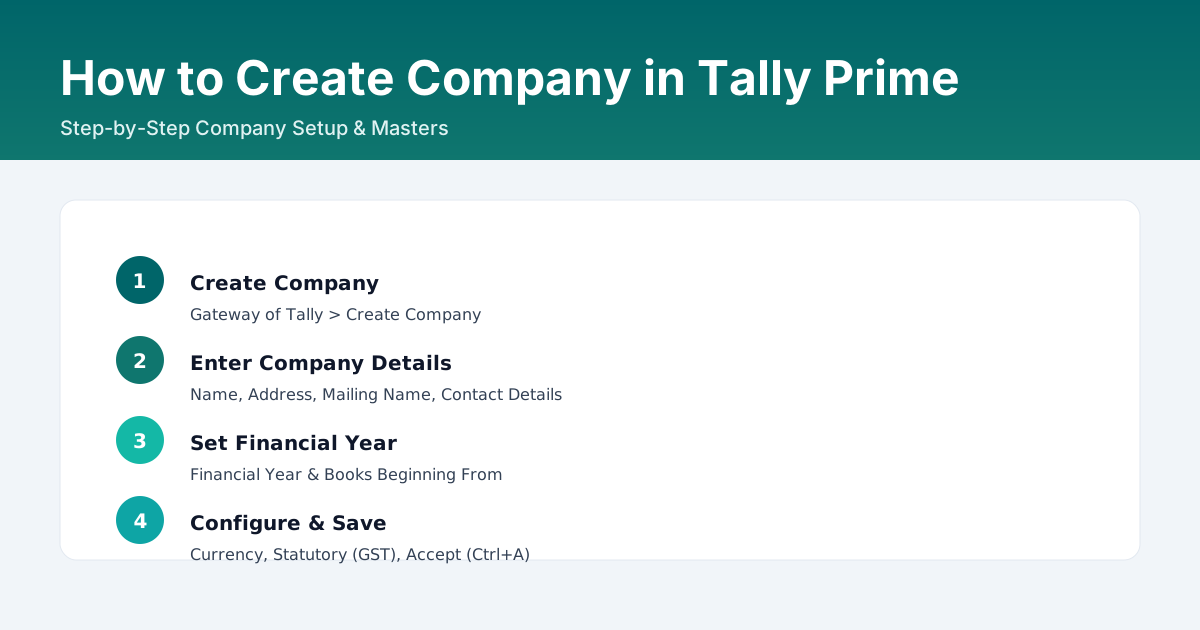
Accurate company setup ensures correct reporting and compliance. Define financial year, address, GST details (if applicable), and security settings from the start. Keep masters clean to avoid reconciliation issues later.
Steps to create a company (TallyPrime 7.2):
- Open Tally Prime and press Alt+F3 > Create Company (or from Company Info screen).
- Fill Company Name, Mailing Name, Address, State, Country and Contact details.
- Set Financial Year From (e.g., 01-04-YYYY) and Books Beginning From.
- Set Base Currency Symbol (e.g., INR).
- Configure GST (if applicable) and other statutory details as required.
- Accept with Ctrl+A.
How to open/select a company: Alt+F3 > Select Company > Choose your company and press Enter.
How to alter/edit company details: Alt+F3 > Alter > Select company name > Edit details and accept (Ctrl+A).
How to shut a company: Alt+F3 > Shut Company > Select company name > Enter.
How to delete a company: Alt+F3 > Alter > Select company > Press Alt+D > Confirm twice (Yes, Yes). (Take backup before deleting.)
Step-by-Step Examples
Create New Company
- Open Tally Prime > Create Company
- Enter Company Name, Mailing Name, Address
- Set Financial Year and Books Beginning From
- Configure Currency, GST and other statutory details
- Review and Accept (Ctrl+A)
- Set correct Financial Year to avoid period selection errors
- Enable GST only if registered
FAQs
How to create a company in Tally Prime step by step?
Open Tally Prime > Create Company, enter basic details, set financial year, configure currency/statutory settings, then save.
Can I edit company details later?
Yes. Use Company Info > Alter to update details where permitted.
Get Your Tally Setup Right
Need help with initial setup, chart of accounts structuring or multi-location setup?
Contact Us