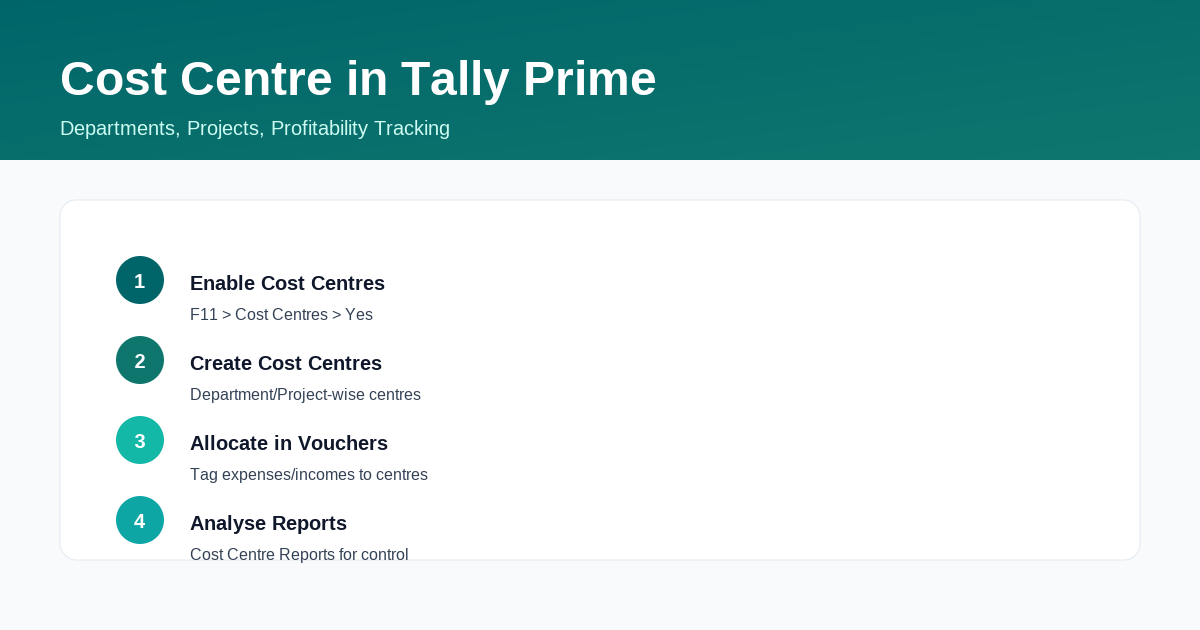
What are Cost Centres and Cost Categories?
- Cost Centre: A unit like Department, Branch, Sales Team or Project used to track costs/revenues. Example: Marketing, Sales, HR, Production.
- Cost Category: Used when the same voucher needs to be split across different dimensions. Example: allocate an expense by Department and by Project at the same time.
What you will learn
- How to enable Cost Centres in TallyPrime
- Difference between Cost Centre and Cost Category
- How to create Cost Centres and Cost Categories
- How to allocate in vouchers
- How to view Cost Centre reports
1. Enable Cost Centres
- Press F11 (Company Features) > Accounting Features.
- Set Maintain Cost Centres to Yes.
- If you need multiple dimensions, set More than one payroll / cost category as required.
- Accept with Ctrl+A.
2. Create Cost Centres
- Go To (Alt+G) > Create Master > Cost Centre (or Accounts Info > Cost Centres > Create).
- Enter the Cost Centre Name (e.g., Sales, Marketing, Accounts).
- Under - select Primary or parent cost centre if creating sub-centres.
- Accept with Ctrl+A.
3. Create Cost Categories (optional but useful)
Use this only if you need to track by more than one classification in the same voucher.
- Go To (Alt+G) > Create Master > Cost Category > Create.
- Enter Category Name (e.g., Projects, Regions).
- Create Cost Centres under that Cost Category.
- Accept with Ctrl+A.
4. Allocate in Vouchers
When booking an expense, income or journal voucher:
- In the ledger allocation screen, TallyPrime will prompt for Cost Centre details if Maintain Cost Centres is enabled.
- Select the relevant Cost Centre (or Cost Category + Cost Centre).
- Enter the amount for that allocation.
- Accept and continue.
Example: Book a Salary voucher and allocate to different departments using cost centres to see department-wise salary cost.
5. View Cost Centre Reports
| Report | Path | Purpose |
|---|---|---|
| Cost Category Summary | Display > Statement of Accounts > Cost Centres > Cost Category Summary | Summary by cost category |
| Cost Centre Breakup | Display > Statement of Accounts > Cost Centres > Cost Centre Breakup | Detailed breakup of a cost centre |
| Ledger Breakup | Open any cost centre report > drill down | See which ledgers contributed to that cost centre |
Cost centre versus a group
A group decides where a balance lands on the balance sheet. A cost centre divides an amount that has already been booked, without changing the ledger it sits in. Rent is still rent in the profit and loss statement whether it is allocated to two departments or twenty; the cost centre report is what tells you how much of it belongs to each department. That is why cost centres never replace ledgers - they sit alongside them.
Allocating in a sales or purchase voucher
Cost centres are not limited to expenses. On a sales voucher, allocating the line to a branch cost centre gives revenue by branch. On a purchase voucher it gives purchase cost by project. The allocation screen appears once the feature is enabled and the ledger is one that supports it, so if the prompt does not appear, check that Maintain Cost Centres is still set to Yes and that the voucher has an amount to allocate.
What cost centres do not do
- They do not change the ledger balance or the trial balance; they only split an amount for analysis.
- They do not replace a separate company for a different business; that needs its own books.
- They are not a substitute for inventory godowns, which track stock quantities rather than money.
- They do not report on their own unless you open the cost centre reports rather than the standard statements.
When to use Cost Centres vs Cost Categories
| Scenario | Recommendation |
|---|---|
| Track by Department only (Sales/HR/Accounts) | Use Cost Centres only |
| Track by Department and Project together on the same entry | Use Cost Categories + Cost Centres |
| Track branch-wise expenses | Use Cost Centres with branch names |
| Simple profitability by team | Use Cost Centres only (easier to manage) |
Tips
- Keep cost centre names short and consistent (avoid duplicates).
- Don't create too many cost centres at the start - add as needed.
- Use cost centres mainly for expenses/incomes where analysis is required.
- Review Cost Centre Breakup reports monthly for better cost control.
- Decide the naming convention before the first allocation, because renaming later leaves old vouchers under the old name.
FAQs
What is the difference between Cost Centre and Cost Category in TallyPrime?
A Cost Centre is a single unit (Department/Project). A Cost Category allows you to use two dimensions together (e.g., Department + Project) in the same voucher.
How to enable Cost Centres in TallyPrime?
Press F11 (Company Features) > Accounting Features and set Maintain Cost Centres to Yes. Accept with Ctrl+A.
Can I track expenses department-wise in TallyPrime?
Yes. Enable Cost Centres, create cost centres for each department, and allocate the relevant ledgers/amounts in vouchers. Then view Cost Centre Breakup reports.
Do I need Cost Categories for every business?
No. Most businesses only need Cost Centres. Use Cost Categories only if you need to analyse by two classifications at the same time.
Cost Centre Setup Checklist (PDF)
Checklist for enabling and using cost centres effectively.
Lead capture is minimal and business-focused. Fill details below to download the resource.
Departmental Accounting Made Easy
Our industry-specific modules extend cost centre capabilities.
Learn More