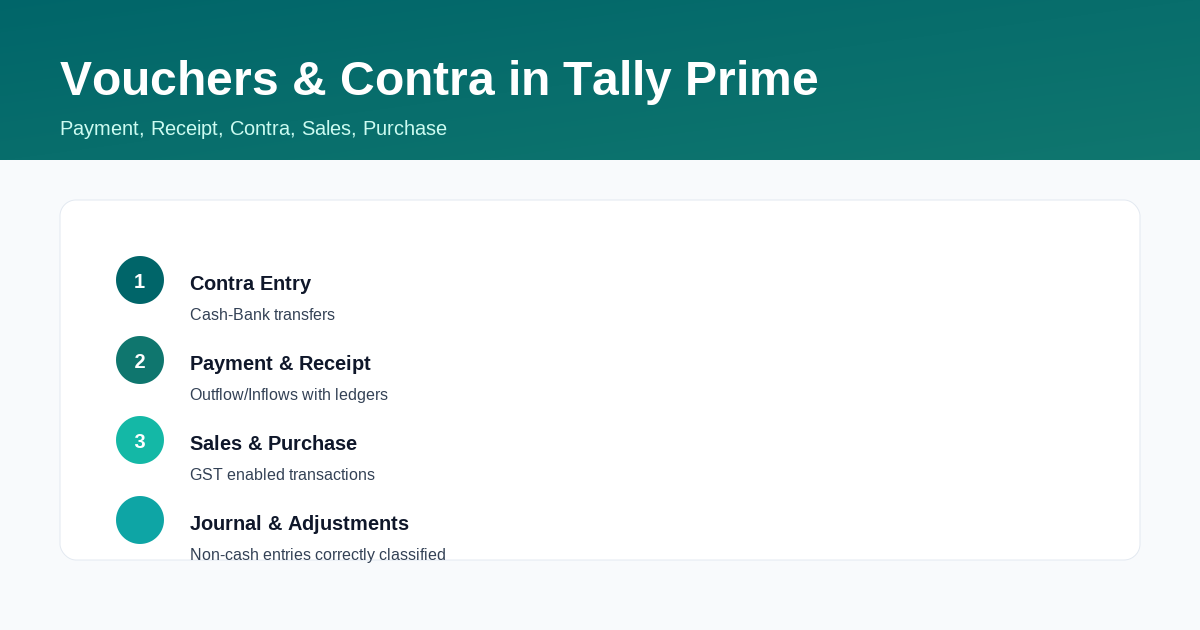
Every transaction in TallyPrime is recorded through a voucher, and the voucher type decides which ledgers it can touch and which report it lands in. Pick the wrong type and the amount is still in the books, but the report built on that type will be wrong.
The three voucher families
Tally groups the vouchers a business uses every day into three families - accounting, inventory and order. Each family maps to its own set of reports.
Accounting vouchers
| Voucher | Shortcut | Use it for |
|---|---|---|
| Contra | F4 | Cash deposited into a bank, cash withdrawn from a bank, or a transfer between two bank accounts |
| Payment | F5 | Money going out to a party, an expense, a fixed asset or a creditor; the cheque can be printed from the same screen |
| Receipt | F6 | Money coming in from a customer; TallyPrime shows the pending invoices so the receipt can be tagged against one |
| Journal | F7 | Adjustments between non-cash ledgers, including credit purchases and credit sales |
| Sales | F8 | Selling goods or services to a customer |
| Purchase | F9 | Buying goods or services from a supplier |
| Debit Note | Alt+F5 | A purchase return, or a reduction in what the business owes a supplier |
| Credit Note | Alt+F6 | A sales return, or a reduction in what a customer owes the business |
All eight are accounting voucher types, and all eight work in a company that has only accounting enabled. Sales and Purchase carry stock only when they are raised in invoice mode; in accounting-invoice or As-voucher mode the same voucher posts a plain debit/credit entry and no stock moves, which is how service bills are recorded.
Payment and Receipt do more than post an amount. A Payment voucher can print the cheque, and Banking > Cheque Printing lists the cheques still to be printed; TallyPrime supports over 500 banks in India and abroad, and a Payment Advice can be generated and shared with the supplier. A Receipt records whether the money came by cash, cheque, NEFT or RTGS, along with the instrument number, and can be emailed to the customer.
A Credit Note lets you quote the original invoice, and once the party is selected TallyPrime lists the invoices raised against that party. A Debit Note also accepts the original invoice numbers, and can be passed as an invoice when the inventory value has to change.
Inventory vouchers
| Voucher | Shortcut | Use it for |
|---|---|---|
| Physical Stock | Ctrl+F7 | Adjust the books to the stock actually counted during physical verification |
| Stock Journal | Alt+F7 | Move stock between godowns, convert raw material into finished goods, or adjust stock |
| Delivery Note | Alt+F8 | Record goods dispatched - a delivery challan carrying transporter, lorry, dispatch document and bill of lading details |
| Receipt Note | Alt+F9 | Record a consignment received from a supplier |
| Material In / Material Out | F10 (voucher type list) | Track inventory sent for job work and inventory received back |
Rejection In (Ctrl+F6) and Rejection Out (Ctrl+F5) sit in the same list for goods returned to and from a customer.
Order vouchers
| Voucher | Shortcut | Use it for |
|---|---|---|
| Purchase Order | Ctrl+F9 | An order placed on a supplier, with rates and expected dates |
| Sales Order | Ctrl+F8 | An order received from a customer |
An order voucher is not a bill. It records the commitment, and once it is converted the order can be fulfilled in part, tracked for the balance, or pre-closed when the rest will not arrive. Purchase Order and Sales Order record the commitment; Delivery Note and Receipt Note record the goods actually moving. Together they keep the whole order-to-delivery cycle visible inside TallyPrime.
Choosing the mode for a sale or a purchase
TallyPrime records a sale or a purchase in invoice mode, accounting-invoice mode or As-voucher mode. Invoice mode is the one to use when you are billing inventory; accounting-invoice mode suits service bills; As-voucher mode posts the transaction as a plain debit/credit entry. You can convert a voucher into an invoice, or the other way round, with the toggle button - TallyPrime auto-adjusts the fields instead of making you re-enter the voucher. F12 (Configure) on the voucher screen turns on the extra detail fields.
What a contra entry actually is
A contra entry moves money between two accounts that both belong to the same business - cash to bank, bank to cash, or one bank account to another. It is not income and it is not an expense, which is why the two ledgers sit on opposite sides of the same voucher and the combined cash and bank balance does not change.
- Cash deposited into the bank: debit the bank ledger, credit Cash-in-Hand.
- Cash withdrawn for office use: debit Cash-in-Hand, credit the bank ledger.
- Transfer between two bank accounts: debit the receiving bank, credit the sending bank.
TallyPrime can also print a cash deposit slip for the deposit and break the amount into note denominations, so the slip matches the cash actually handed over.
Record a deposit as a Receipt instead of a Contra and the bank balance rises while the cash balance never falls, so together they overstate the money the business actually holds. That single mistake is the most common reason a cash and bank summary will not reconcile.
Recording a day of entries in the right order
- Purchases and expenses first, so the ledgers exist with the right balances.
- Sales and receipts next, so debtors reflect what was actually collected.
- Contra entries last, so the cash and bank position matches the day's physical count and the bank statement.
Finding a voucher later
Press Alt+G (Go To) and type Day Book, or open Display More Reports > Day Book, to see every voucher for a date range, or open the relevant register and drill into the voucher. Editing a posted voucher changes the reports immediately, so alter only the voucher that actually needs correcting.
Common mistakes
- Using a Payment voucher for a bank-to-bank transfer, which posts an expense that never happened.
- Recording a sales return as a Receipt, which reduces the debtor without reducing the sale.
- Raising a Journal for cash, which leaves the cash ledger out of the cash summary.
- Using a Sales voucher in accounting-invoice or As-voucher mode and expecting stock to move. Stock moves only in invoice mode.
Standardize Voucher Entry
Standardize Voucher Entry is our Tally customization for teams where more than one person posts vouchers. It is not a new voucher type - it adds rules on top of the types above, so the same mistake cannot keep happening across operators, branches or shifts.
- Voucher routing: limits which ledgers a voucher type can touch, so a cash-to-bank movement has to go through Contra instead of being posted as a Payment or Receipt.
- Mandatory fields: makes the details your books actually depend on compulsory before the voucher saves - cheque or UTR number, narration, cost centre, reference number, or the party tax details.
- User-level limits: applies the rules per user, so a data entry operator follows them while the owner or accountant keeps full access.
The result shows up in reconciliation and audit: fewer mis-posted entries, a bank reconciliation that matches without a hunt, and reports that say what actually happened rather than what someone typed in a hurry.
FAQs
What are the types of vouchers in Tally?
Tally groups the commonly used vouchers into three families. Accounting vouchers: Contra (F4), Payment (F5), Receipt (F6), Journal (F7), Sales (F8), Purchase (F9), Debit Note (Alt+F5) and Credit Note (Alt+F6). Inventory vouchers: Physical Stock (Ctrl+F7), Stock Journal (Alt+F7), Delivery Note (Alt+F8), Receipt Note (Alt+F9), Material In and Material Out. Order vouchers: Sales Order (Ctrl+F8) and Purchase Order (Ctrl+F9). Payroll is Ctrl+F4 once payroll is enabled.
What is the difference between an accounting voucher and an inventory voucher?
An accounting voucher moves money between ledgers - Payment, Receipt, Contra, Journal, Sales, Purchase and the two notes. An inventory voucher moves or adjusts stock: Physical Stock for a counted difference, Stock Journal for a godown transfer, Delivery Note and Receipt Note for goods going out and coming in, and Material In / Material Out for job work.
Which voucher is used for a delivery challan in TallyPrime?
The Delivery Note voucher, Alt+F8. It records goods dispatched and carries transporter details such as the lorry number, dispatch document number and bill of lading. The inward counterpart is the Receipt Note, Alt+F9.
What is the shortcut for Sales Order and Purchase Order?
Sales Order is Ctrl+F8 and Purchase Order is Ctrl+F9. They are order vouchers, not bills - you can fulfil an order in part, track the balance and pre-close it. Do not confuse them with F8 (Sales) and F9 (Purchase).
What is contra entry in Tally?
Contra entry records transfer between cash and bank (cash deposit/withdrawal). Use F4: Contra voucher.
What is Standardize Voucher Entry in TallyPrime?
It is a Tally customization that enforces entry rules on top of the standard voucher types: it restricts which ledgers a voucher can use (for example, forcing Contra for a cash-to-bank movement instead of Payment or Receipt) and makes fields such as cheque number, narration, cost centre or reference number compulsory before the voucher saves. Rules can be applied per user, so data entry follows the company process while the accountant keeps full access.
Standardize Voucher Entry
Our custom modules help enforce voucher entry rules for teams.
Learn More